
How to install and update drivers on Windows 11on June 27, 2023 at 12:29 Tech Advisor
Without device drivers, or simply drivers as they’re more commonly known, Windows 11 wouldn’t function.
They contain all the necessary code for the operating system to communicate and control both on-device hardware and any external accessories you connect.
But with so much of this done automatically in the background, it might not be something you’ve thought about. While Windows 11 does install and update drivers for you, it’s not perfect.
Drivers can easily go missing or end up out of date, so it’s important to know how to install them for yourself. In this article, we’ll run through both automatic and manual methods.
How to install Windows 11 drivers automatically
By default, Windows 11 will automatically download and update the necessary drivers. But it’s worth making sure this is still happening, or turn it off if you’d prefer:
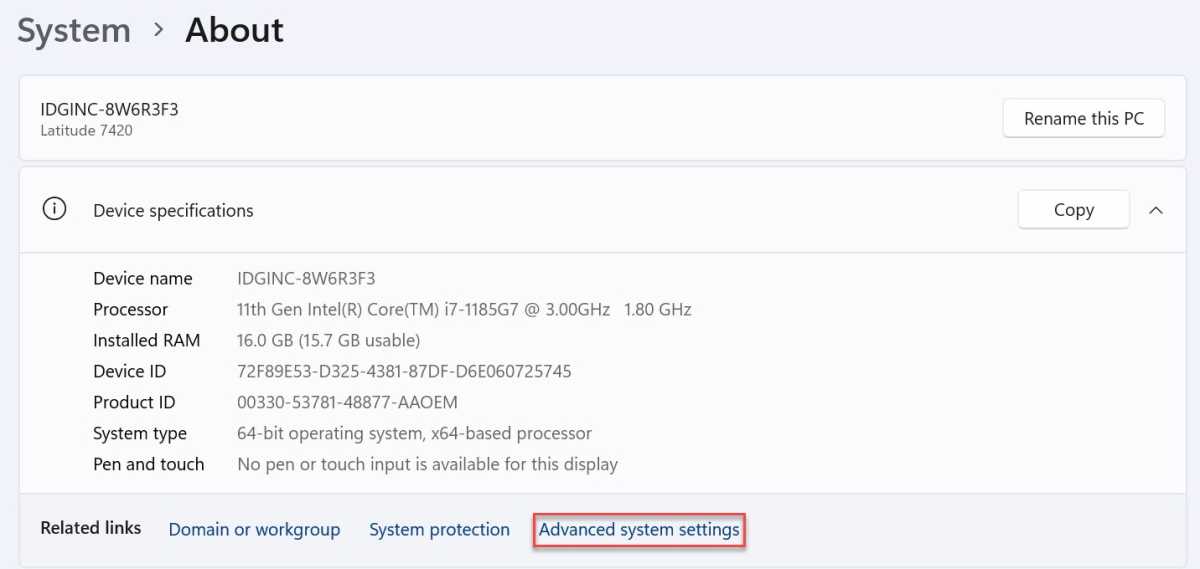
Head to Settings > System > About
From the ‘Related links’ section, click ‘Advanced system settings’
Anyron Copeman / Foundry
From the window that appears, choose the ‘Hardware’ tab
Click ‘Device Installation Settings’
Anyron Copeman / Foundry
If it’s not already selected, click ‘Yes’ to ensure automatic downloads and updates. To switch to manual, click ‘No’ followed by ‘Save Changes’ and ‘OK’
Anyron Copeman / Foundry
With manual enabled, your device will stop installing and updating drivers immediately: there’s no need to restart your device.
This allows you to be more selective regarding the drivers you install, but you’ll have to keep on top of updates to make sure everything runs properly.
How to install Windows 11 drivers manually
There are a few ways to manually install drivers in Windows 11. The first is via Settings, which is the only one you’ll need to check if you still have automatic updates turned on – except if you notice anything not working properly:
Head to Settings > Windows Update > Advanced options
Anyron Copeman / Foundry
Under ‘Additional options’, click ‘Optional updates’
Anyron Copeman / Foundry
If any driver updates are available, a section should be shown here. Click it to expand
Check the box next to any updates you’d like, then click ‘Download & install’
Anyron Copeman / Foundry
These updates will now be installed like any new version of Windows 11. If you’re not prompted to do so, it’s worth restarting your device at this stage.
But any driver updates that would usually be installed automatically won’t show up in Settings. If you’ve turned off automatic updates, you’ll need to download them manually from the relevant companies’ websites.
For most devices, you’ll need the drivers from the maker of the device and the processor it’s using. For each of the most popular ones below, search using your hardware model and serial number:
Intel AMD Dell Lenovo HP ASUS Acer
Once downloaded, you’ll need to install the drivers via Device Manager:
In the search bar next to the Start menu, search for ‘device manager’ and open the relevant option
For each driver, expand the relevant category and find the driver you’d like to overwrite
Right-click it and choose ‘Update driver’
Anyron Copeman / Foundry
From the window that appears, click ‘Browse my computer for drivers’
Anyron Copeman / Foundry
From the next screen, click ‘Browse…’
Anyron Copeman / Foundry
Select the folder where the driver installation files are located
Make sure the box next to ‘Include subfolders’ is ticked, then click ‘Next’
Click ‘Close’
Repeat this process for any other driver you’d like to install.
But for graphics cards, the links above won’t necessarily work. Your best bet for these is to get the control panel app for the GPU manufacturer, which can act as a hub for downloading and installing driver updates.
Here are the three most common:
NVIDIA GeForce Experience AMD Radeon Software Adrenalin Edition Intel Driver & Support Assistant
Once installed, simply follow the on-screen instructions and check for updates. You can also download these individually, but the dedicated software is much easier.
How to check if Windows 11 drivers have been installed
There’s not usually any confirmation message, so how do you know that drivers have been installed successfully? Fortunately, it’s easy to check:
In the search bar next to the Start menu, search for ‘device manager’ and open the relevant option
Make sure there are no yellow warning signs, which would indicate something is wrong. If so, double-click that option and check its status
Right-click the driver you’d like to check and choose ‘Properties’
Anyron Copeman / Foundry
Select the ‘Driver’ tab
See if the ‘Driver Date’ and ‘Driver Version’ match the one you tried to install
Anyron Copeman / Foundry
Related articles
How to fix internet connection problems in Windows 11How to fix Windows 11 Bluetooth that’s not workingWindows 11: Everything you need to know
Windows